
TL;DR:
- Mastering online library searches requires understanding how collections are organized and selecting appropriate tools.
- Using Boolean logic, phrase searching, and filters appropriately can significantly refine search results and improve research efficiency.
Most students and educators sit down to search an online library and immediately feel lost. The interface looks simple enough, but the results come back either hopelessly broad or frustratingly thin. Mastering a step by step online library search is less about knowing where to click and more about understanding the logic behind how libraries organise and index their collections. This guide walks you through everything, from setting up your search before you type a single word, to refining results with Boolean logic, to managing what you find so it actually serves your research.
Table of Contents
- Key takeaways
- Step by step online library search: getting prepared
- Performing an effective search
- Troubleshooting common search problems
- Verifying and managing your results
- My perspective on mastering library searches
- Discover more with Bibliowlteca
- FAQ
Key takeaways
| Point | Details |
|---|---|
| Prepare before you search | Formulate your research question and gather synonyms before opening any search interface. |
| Match your tool to your need | Catalogues find physical and digital items; databases find journal articles. Searching the wrong one means missing key sources. |
| Boolean logic changes results | AND narrows, OR broadens, and NOT excludes. Using these three operators correctly transforms your results. |
| Troubleshoot by changing location | If results are missing, you are almost certainly searching the wrong catalogue or database. |
| Manage what you find | Save, export, and track loan expiry dates so you never lose access to a source mid-project. |
Step by step online library search: getting prepared
Before you touch a search bar, the groundwork you lay will determine how useful your results are. This is where most students skip ahead and pay for it later with hours of aimless browsing.
Understand the types of resources available
Online libraries are not a single pool of content. They are several distinct collections sitting alongside one another. A library's academic resources typically include a main catalogue (physical books and e-books), subject-specific databases (peer-reviewed journal articles), institutional repositories (theses and working papers), and digital archives (maps, manuscripts, and multimedia).
The distinction between a discovery system and a specialised database matters enormously. Discovery systems, sometimes labelled "Search Everything" or "OneSearch," unify multiple collections under one interface. They are excellent for a first pass. Discovery systems unify collections but advanced modes provide precision targeting, and switching modes expedites research considerably. In practice, you might start in discovery mode to understand what exists, then pivot to a subject database like JSTOR, PsycINFO, or ERIC for depth.
| Tool type | What it finds | Best used for |
|---|---|---|
| Library catalogue | Physical books, e-books, DVDs | Finding items to borrow |
| Discovery system | Mixed collections in one search | Early-stage exploration |
| Subject database | Peer-reviewed journal articles | In-depth academic research |
| Institutional repository | Theses, reports, working papers | Specialist or niche topics |
| Digital archive | Manuscripts, maps, audio-visual | Primary source research |
Set up your access credentials
Most libraries require you to sign in with a library card number and a PIN to access licensed databases and digital loans. Virtual library systems grant access to homework help, research articles, e-books, and borrowing apps like Libby once you authenticate properly. Take five minutes before your research session to confirm your login works, check your institution's remote access instructions (often via a VPN or proxy link), and note which databases your library subscribes to.

Formulate your research question and gather keywords
Comprehensive literature searching begins with formulating a research question, building synonyms, and selecting databases before you type anything. Write your research question as a full sentence, then pull out the two or three central concepts. For each concept, list synonyms, abbreviations, and related terms. A question like "How does social media affect adolescent mental health?" yields concepts such as "social media / social networking / online platforms," "adolescent / teenager / young people," and "mental health / wellbeing / psychological distress."
Pro Tip: Keep a working document open beside your library search tab. Paste useful terms, record which databases you have tried, and note what worked. This simple habit prevents you from repeating searches you have already run.
Performing an effective search
With your keywords ready and your access confirmed, you can now move through the actual search process systematically.
Step 1: Start with a broad discovery search
Open your library's discovery system and type your primary keyword phrase into the main search bar. Do not over-engineer this first search. The goal is to understand what the collection holds, spot the subject headings the library uses, and identify a handful of obviously relevant items.
Best practice is to start with broad searches to identify candidate records, then pivot quickly to catalogue-only or article-only searches for precision. Once you have three or four clearly relevant results, look at their subject headings or descriptors. These are the controlled vocabulary terms the library uses to categorise items, and they are often more precise than the natural language terms you started with.
Step 2: Apply Boolean operators
Boolean operators are the three words that give you real control over any search. Boolean operators AND, OR, and NOT narrow, broaden, and exclude results respectively, though operator case sensitivity varies by tool, so type them in capitals to be safe.
Here is how each one works in practice:
- AND combines concepts so that every result contains both terms. Searching adolescent AND mental health tells the database you need both ideas present, not just one.
- OR broadens your search by telling the database that either term is acceptable. Searching adolescent OR teenager OR "young people" means you will not miss articles that use a different word for the same group.
- NOT excludes a term. Searching depression NOT clinical is useful when a word has multiple meanings and you want to remove one of them from your results.
A complete Boolean string combining all three operators might look like this: (adolescent OR teenager) AND (mental health OR wellbeing) NOT clinical. Most databases accept this syntax directly in the search bar.
Step 3: Use phrase searching and truncation
Two more techniques sit alongside Boolean logic and deserve equal attention. Phrase searching with quotation marks increases precision by locking the word order, while truncation with an asterisk (*) increases recall by capturing multiple word endings.
Searching "mental health" as a phrase returns only results where those two words appear together in that order. Without the quotes, a database might return results where mental and health appear on different pages. Truncation works differently: typing psycholog* retrieves psychology, psychological, psychologist, psychologists, and any other word sharing that root. The trade-off is that truncation can also pull in irrelevant results if the root is too short, so use it with roots of at least five or six characters.
Step 4: Use advanced search and filters
Once you have a working Boolean string, move to the advanced search screen. Here you can restrict searches by field (title, author, subject, abstract), format (e-book, print, video), publication date range, language, and peer-review status. Advanced search features including title, author, and ISBN fields alongside format and date filters allow you to target your results with far greater accuracy than a basic keyword search alone.
Filtering by peer-reviewed status is particularly useful for academic assignments, as it removes magazines, newsletters, and opinion pieces in a single click.
Pro Tip: Treat each search query as a hypothesis. Identify two or three items you already know are relevant, then adjust your search terms until your query consistently retrieves those known items. This technique, recommended by University of Toronto Libraries, confirms your query is working before you build on it.
Step 5: Switch between resource types
Effective searching requires applying different strategies and switching resources depending on the type of information you need. If you need a broad overview, the catalogue is the right starting point. If you need empirical studies, move to a subject database. If you need recent policy documents or reports, try your institution's repository or a government database. No single interface covers everything.
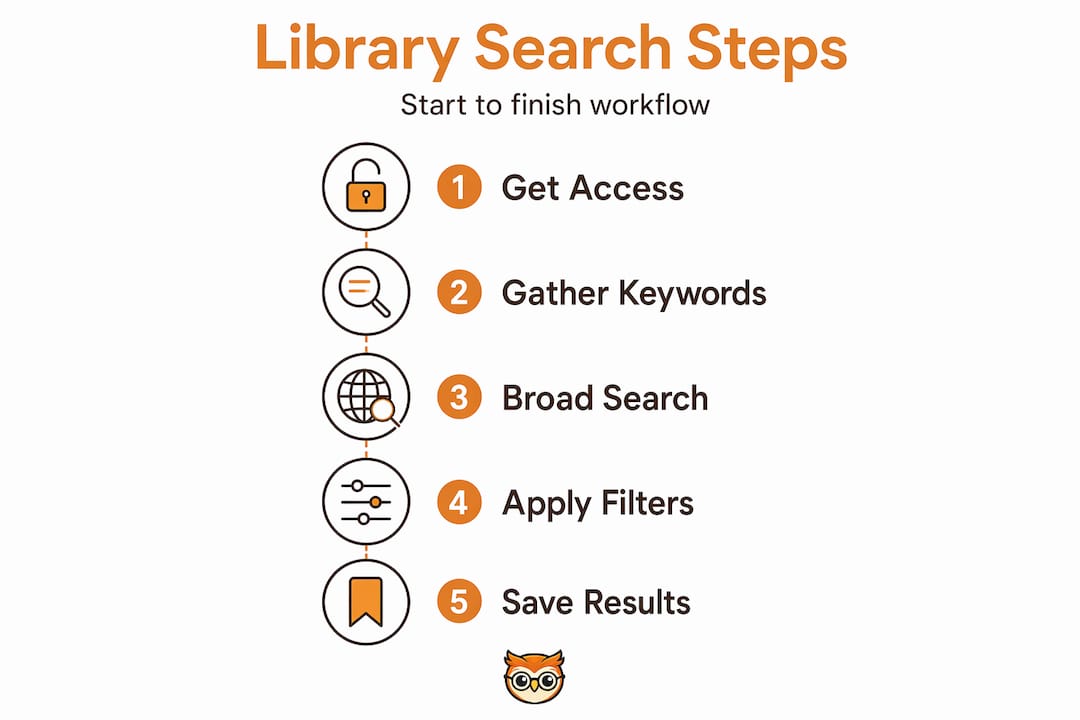
A practical workflow looks like this:
- Run a broad discovery search to map the territory.
- Note the subject headings and controlled vocabulary from the top results.
- Move to the relevant subject database and rebuild your search using Boolean operators and those subject headings.
- Apply filters for date range and peer-reviewed status.
- Scan titles and abstracts, then save relevant items to a reading list or folder.
- Refine your terms based on what you find, and repeat until results plateau.
Troubleshooting common search problems
Even with a good approach, things go wrong. Knowing how to diagnose problems quickly saves considerable time.
Too many results usually means your search is too broad. Add another AND term to introduce a second concept, or add a subject heading as a filter. Moving from a discovery search to a subject database also reduces noise significantly.
Too few results is the opposite problem. Replace AND with OR between synonym groups, remove one concept entirely to test whether the combination is too restrictive, or try truncation on your core terms to capture variant endings.
Missing materials are the trickiest problem. Many libraries maintain multiple catalogues for different resource types, including main catalogues, sound and moving image catalogues, and archives and manuscripts catalogues. A book that does not appear in the main catalogue may sit in a special collection with its own search interface. If a source you know exists does not appear, check whether you are searching in the right catalogue for that material type.
Matching your search location to the information type is a foundational principle: searching the right catalogue is the single most common fix for persistently poor results.
Here are the most frequent errors and their corrections:
- Forgetting to capitalise Boolean operators (AND, OR, NOT) in databases that require it
- Using truncation on a two or three letter root, which produces thousands of irrelevant results
- Searching a general catalogue for journal articles that only exist in a database
- Entering too many concepts in one search string, which makes the query too restrictive
- Using natural language phrasing ("what are the effects of...") instead of keyword combinations
If you have restructured your search, switched databases, and checked multiple catalogues and still cannot find what you need, contact a subject librarian. They have access to search logs, specialist databases, and interlibrary loan services that are not visible from the standard interface.
Pro Tip: Most libraries offer an interlibrary loan service. If a source is not held locally, you can request it from another institution, often at no cost. Submit requests early, as delivery can take several days.
Verifying and managing your results
Finding sources is only half the task. Knowing what to do with them determines whether your research holds together under scrutiny.
Evaluate source credibility
Before saving a source, ask four questions: Who is the author and what are their credentials? What is the publication and is it peer reviewed? When was it published and is the information still current? Does the argument cite credible evidence? These questions apply equally to journal articles, e-books, and digital archives.
Discovery systems and databases often display impact metrics such as citation counts alongside results. These are a useful starting signal but not a substitute for reading the abstract critically.
Use integrated citation tools
Most library search systems include built-in citation export tools. Look for buttons labelled "Cite," "Export," or "Save to citation manager." These allow you to export references directly to tools like Zotero, Mendeley, or RefWorks in your preferred referencing style. Using integrated library resource tools for citation export and loan management prevents the common last-minute scramble of trying to reconstruct a reference from memory.
Manage loans and holds for digital items
Digital borrowing follows a strict loan window that does not bend for deadlines. Digital borrowing apps include planning loan holds and expiry notifications, and loans automatically download for offline use once borrowed via apps like Libby. Check your loan expiry date the moment you borrow an item. If your project extends beyond the loan window, renew early or request a hold before the item returns to the queue.
Pro Tip: Export your references to a citation manager before your loan expires. The full text disappears when the loan ends, but your notes and citation data remain.
| Approach | Manual management | Digital tools |
|---|---|---|
| Saving sources | Writing titles and URLs by hand | Folder or reading list inside the database |
| Managing citations | Typing references from scratch | One-click export to Zotero or RefWorks |
| Tracking loans | Remembering return dates | Automated alerts from the library system or Libby |
| Organising notes | Separate notebook or document | Annotation tools within the platform |
Understanding how to build educational reading lists as you search, rather than retrospectively, keeps your project organised from the start rather than the finish.
My perspective on mastering library searches
I have spent years working with students and educators who approach online library searches as though the interface will do the thinking for them. It will not. The search bar is a translation device: it converts your intellectual question into a set of terms the database understands. If you have not thought carefully about that translation, the results will be poor regardless of how sophisticated the platform is.
What I have found, consistently, is that people overestimate their first search. They type a phrase, scan the first page of results, decide the library does not have what they need, and give up. The reality is that their search was simply under-specified. The sources were there all along.
The most useful shift I have seen in researchers who improve quickly is treating their search as iterative rather than final. Every result set teaches you something: which terms the database uses, which subject headings exist, which time periods have the most coverage. That feedback makes your next search sharper.
My honest advice is to spend more time on keyword preparation than on the search itself. A well-constructed synonym table and a clear Boolean string will outperform an hour of aimless clicking every single time. Start broad, go deep, and never assume a missing result means the source does not exist. It almost always means you have not found the right catalogue yet.
— BibliOWLteca
Discover more with Bibliowlteca
If you found this guide useful, Bibliowlteca is built for educators and creators who take knowledge seriously. The platform gives you the tools to publish, distribute, and manage educational content globally, whether that is a course, an e-book, or a curated resource collection.

Whether you are a student looking to sharpen your research skills or an educator building a richer resource collection for your learners, Bibliowlteca's platform offers the infrastructure to support that work at scale. With built-in tools for digital delivery, payment processing, and global distribution, it is designed for people who want to turn knowledge into something tangible. Explore what is possible and see how the platform can complement the research and publishing work you are already doing.
FAQ
What is a Boolean operator in library searching?
Boolean operators are the words AND, OR, and NOT used to control how search terms are combined. AND narrows results, OR broadens them, and NOT excludes a term entirely.
Why am I getting too few results in my library search?
Too few results usually means your search is too restrictive. Try replacing AND with OR between synonym groups, or use truncation to capture variant word endings.
What is the difference between a catalogue and a database?
A library catalogue lists physical and digital items the library holds, such as books and e-books. A database indexes journal articles and research papers, often from external publishers.
How do I know which online library tool to use?
Match your tool to the type of source you need. Use the catalogue for books, a subject database for journal articles, and a discovery system for an early overview across all collection types.
What should I do if a source is missing from the catalogue?
Check whether you are searching the correct catalogue for that material type, as many libraries hold separate catalogues for archives, multimedia, and manuscripts. If it is still missing, request it through interlibrary loan.