
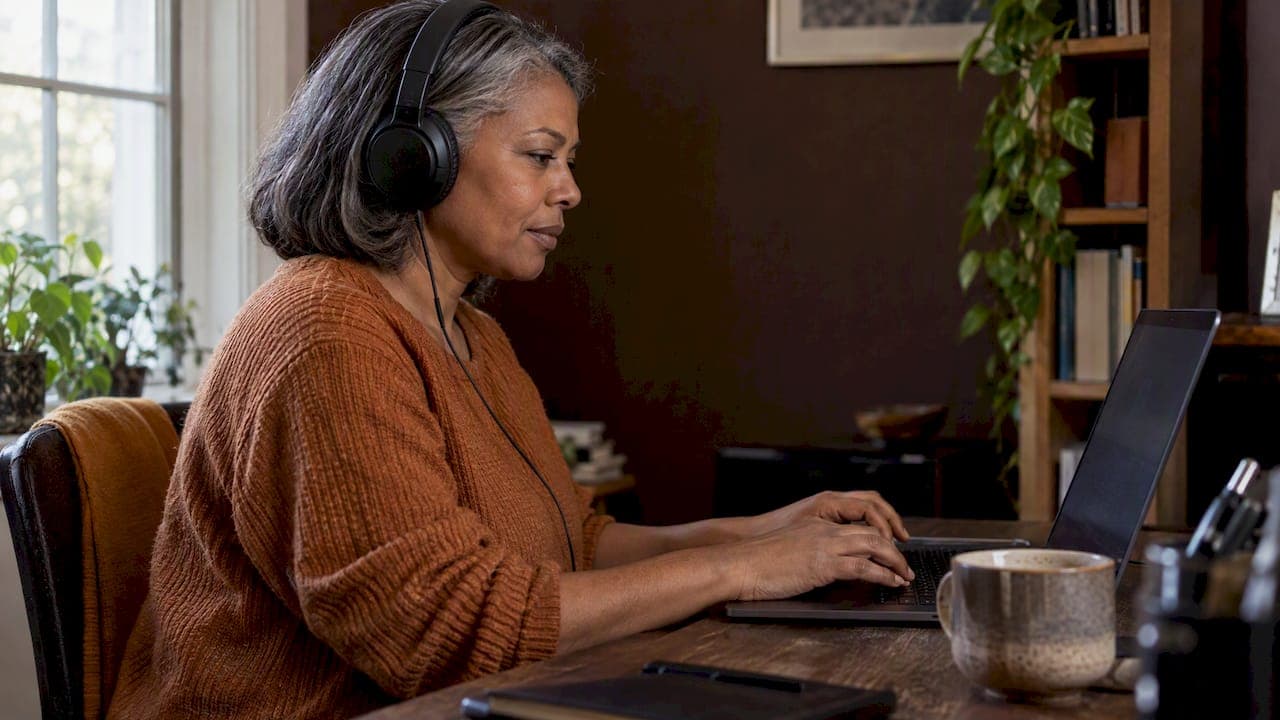
An accessible online course is one that learners with disabilities can perceive, understand, navigate and complete, using the tools they already rely on, such as screen readers, keyboards and captions. You get there with a short list of habits: captions and transcripts on every video, a clean heading structure, descriptive links, text that does not depend on colour alone, quizzes that work without a mouse, and a test with real people before you publish. None of it needs a design degree. Most of it costs time, not money, and it makes the course easier for everyone.
This guide is for creators who sell courses, e-books and training programmes to a US audience. It covers what accessibility means in practice, which US rules shape the conversation, how to fix the lesson page, the video, the downloads and the quiz, and how to test the result.
TL;DR
- Accessibility means people with disabilities can perceive, understand, navigate and interact with your course. Aim for "usable by as many learners as possible", because no activity suits everyone at once.
- Captions, transcripts, alt text, real headings, descriptive links and keyboard-operable quizzes cover the barriers learners meet most often.
- US rules such as the ADA Title II rule, Section 504 and Section 508 bind public bodies and schools directly. If you sell to them, expect them to ask for WCAG 2.1 Level AA.
- Test with an automated checker, a keyboard-only run-through and at least one real assistive-technology user, then give learners an easy way to report problems.
Table of Contents
- What accessibility means for an online course
- US rules that shape the conversation
- Structure the lesson page so everyone can find their way
- Video, audio and images
- Downloads: PDFs, workbooks and templates
- Quizzes, assignments and interactive features
- Test your course before and after launch
- A pre-publish checklist
- Where to start if you have a back catalogue
- Our perspective
- Sell your accessible course with BibliOWLteca
- FAQ
- Sources
What accessibility means for an online course
The World Wide Web Consortium describes web accessibility as designing and developing websites, tools and technologies so that people with disabilities can use them: perceive, understand, navigate and interact with the web, and contribute to it. Apply that to a course and the question becomes concrete. Can a blind learner move through your lessons with a screen reader? Can a deaf learner follow your video? Can someone who cannot use a mouse finish your quiz?
The picture is wider than permanent disability, though. Researchers writing guidance for online learning at scale point out that creators should also think about international learners, non-native speakers, people with caring responsibilities, and neurodivergent learners who may struggle with synchronous discussions. A live webinar at a fixed time excludes the parent on the night shift. A fast-talking video without subtitles excludes the learner who studies in a second language.
The same experts found that no online course activity is fully accessible to every learner at the same moment. Their working definition is practical: content usable by as many learners as possible. That is a good standard for a solo creator. You are not chasing perfection. You are removing the barriers you can find and offering alternatives where you cannot.
The barriers that matter most
A 2025 paper on inclusive online learning in higher education argues that inaccessible content is perhaps the biggest barrier to online learning, and names two main culprits: multimedia without accurate captions and transcripts, and learning systems or documents that do not work with assistive technology. For a creator, that translates into a short list:
| Learner | Typical barrier | What removes it |
|---|---|---|
| Deaf or hard of hearing | Video and audio with no text version | Accurate captions, transcripts |
| Blind or low vision | Images with no description, unlabelled buttons, scanned PDFs | Alt text, real headings, text-based documents, screen reader testing |
| Motor impairment or no mouse use | Drag-and-drop quizzes, tiny click targets | Keyboard operation, alternatives to dragging |
| Cognitive or neurodivergent | Long, dense lessons, unclear instructions, forced live participation | Short lessons, plain language, asynchronous options |
| Non-native speakers | Fast speech, idioms, no subtitles | Captions, transcripts, simple wording |
US rules that shape the conversation
This section describes the US position and nothing more. Accessibility law is specific to each country, and it changes. If your course business depends on a legal reading, ask a lawyer who handles disability and digital-access cases. What follows is orientation, not legal advice.
Rules that bind public bodies and schools
Title II of the Americans with Disabilities Act requires state and local governments to make their services, programmes and activities accessible, including those offered online and in mobile apps. The Department of Justice rule sets WCAG 2.1 Level AA as the technical standard for their web content and apps. The deadlines are April 26, 2027 for governments serving 50,000 people or more, and April 26, 2028 for smaller populations and special districts. Check the official page before relying on those dates, since rules and guidance can be revised.
Section 504 of the Rehabilitation Act and Title II also matter for education. The Department of Education states that they require institutions to give people with disabilities equal access to educational benefits and opportunities offered online or in other digital formats. Section 508 is the federal counterpart: it requires federal agencies to make their electronic and information technology accessible to people with disabilities.
Why this matters if you sell independently
These laws name public bodies, schools and federal agencies. They do not turn every independent creator's course into a regulated product. They do shape your market, however. A community college, a state agency or a university department that buys or recommends your course will usually need it to meet WCAG 2.1 Level AA or something close. Corporate training buyers increasingly ask the same questions in procurement forms.
The practical conclusion: build to WCAG 2.1 Level AA as your target. It is the yardstick the DOJ rule names, it is widely understood by buyers, and it gives you a clear checklist instead of a vague aim.
A quick guide to WCAG levels
The Web Content Accessibility Guidelines group their requirements into Level A, AA and AAA. Level A covers the essentials. Level AA adds requirements such as sufficient colour contrast. Level AAA is the strictest and is not expected for whole sites. Two examples show how specific the criteria are. Success criterion 1.2.2 asks for synchronised captions on prerecorded video, so people who are deaf or hard of hearing can follow the audio. Success criterion 1.4.3 asks for a contrast ratio of at least 4.5:1 for normal text, with 3:1 for large text.
Structure the lesson page so everyone can find their way
Most accessibility failures are structural, and structure is the cheapest thing to fix. Start with how each lesson page is built.
Headings, navigation and links
Use a consistent, logical heading hierarchy: one main title per lesson, then sections, then sub-sections, never skipping levels for visual effect. Screen reader users jump from heading to heading to scan a page, so headings are their table of contents. University accessibility guidance recommends consistent heading hierarchies, features that work with assistive technology, and descriptive link text and buttons that clearly communicate their purpose.
In practice:
- Write link text that makes sense out of context. "Download the week 3 worksheet" works. "Click here" does not, because screen readers can list all links on a page without the surrounding sentences.
- Name buttons by what they do: "Submit quiz", "Mark lesson complete", "Next lesson: pricing basics".
- Keep navigation in the same place on every page, and let learners skip repeated blocks. The same UC checklist lists a mechanism to bypass repeated content as a standard practice.
- Keep lessons short. Guidance from the University of Georgia suggests lessons of 5 to 10 minutes, which also helps learners with attention or memory difficulties.
Colour, contrast and text
Do not rely on colour alone to carry meaning. "Fix the items in red" fails a colour-blind learner. Add a label, an icon or a pattern, as the University of Georgia guidance advises when it says colour should never be the only signal. Check contrast between text and background against the 4.5:1 ratio mentioned above, and be careful with light grey text on white, which looks elegant and reads poorly.
Write plainly. Define jargon on first use, keep sentences short, and put instructions in a numbered list rather than a paragraph. Plain language helps the learner with dyslexia, the non-native speaker and the tired professional studying at 11pm equally.
Mobile layout
Many learners study on a phone, and some use a phone because it is the device their assistive technology is set up on. A layout that zooms and reflows cleanly is part of accessibility. Our own mobile-friendly course checklist walks through a one-hour pass that doubles as an accessibility check on text size, tap targets and reading order.
Video, audio and images
If your course is video-led, this is the section that decides whether deaf and hard-of-hearing learners can take it at all.
Captions and transcripts
The baseline from the University of Georgia is simple: provide captions for video and audio content, transcripts for audio recordings, and alt text for meaningful images. Captions are the synchronised text track. A transcript is a separate, readable document. Offer both when you can, because a transcript also lets learners search, skim and translate your lesson.
Accuracy is the point. Auto-generated captions are a good first draft and a poor final product, especially with names, product terms and accents. A human pass of ten minutes per video usually catches the errors that change meaning. We cover a workable routine in our guide to publishing course videos with accurate subtitles.
A useful workflow for a creator with a back catalogue of unsubtitled lessons:
- Generate a draft transcript from each video.
- Correct names, numbers and technical terms against your script or slides.
- Upload the corrected captions file, then publish the cleaned text under the video as a transcript.
- Re-use the transcript as the base for your lesson summary or study notes.
If some of your lessons also live on YouTube, a tool for YouTube transcript export can pull a transcript out of a video, even one without captions, which gives you a first draft to edit in step 2.
Audio-only content
Podcast-style lessons and audio coaching recordings need a transcript, full stop. Captions apply to synchronised video. For audio, the readable document is the accessible version. Include speaker names and mark meaningful non-speech sounds if they matter to the lesson.
Describing what is on screen
If you narrate over slides, say what is on them. "As you can see in this chart" excludes a blind learner. "Revenue climbs from 10 thousand in January to 40 thousand in June" includes everyone. Do the same for screen recordings: name the menu you click, not just "click here".
Alt text for images
Alt text is a short description for images that carry meaning. Describe the information, not the picture: for a bar chart, give the main finding and put the data in a table beneath it. Decorative images should have empty alt text so screen readers skip them. Never put essential text inside an image without repeating it as real text.
Video quality helps accessibility too
Clean audio, a steady pace and on-screen text that stays long enough to read all lift accessibility. Our research rubric for educational video quality gives you twelve points to check, several of which overlap directly with accessibility.
Downloads: PDFs, workbooks and templates
Creators who sell e-books, templates and worksheets alongside courses have an extra duty of care, because a file can be inaccessible in ways a web page is not.
- Use real text, not scans. A scanned PDF is a picture of text. Screen readers cannot read it. Export from your word processor or design tool instead.
- Keep the heading structure. Style headings as headings in the source document, so the export keeps them as tags.
- Describe images and tables. Add alt text to figures, and give tables a header row.
- Set the document language and title. It lets screen readers pronounce text correctly.
- Offer an alternative format. An e-book in EPUB or accessible PDF, plus a plain-text version of a worksheet, is far better than one locked design.
If you sell templates, test them with the software your buyers use. A spreadsheet template whose only instructions sit in a coloured cell fails for the same reason a red-only instruction fails in a lesson.
Quizzes, assignments and interactive features
Interactive elements are where well-meant courses break. The UC checklist asks for clear instructions and corrective feedback, features operable by keyboard and assistive technology, and accessible alternatives to mouse-dependent interactions such as drag-and-drop. Turn that into rules for your quiz builder:
- Every question works with the keyboard alone. Tab moves between answers, space or enter selects, and the focus is always visible.
- Replace drag-and-drop with a choice. If you want matching, offer dropdowns or a numbered list as the alternative.
- Write instructions before the question. State the number of attempts, the time allowed and how scoring works.
- Give corrective feedback. Explain why an answer was wrong and point to the lesson to revisit, rather than showing a red cross.
- Be careful with timers. If you must time an assessment, let learners request more time, since screen reader and switch users often need it.
- Offer asynchronous options. Where you run live sessions, record them with captions and let learners respond in writing, which helps those who struggle with real-time discussion.
If you build quizzes in a learning management system, our walkthrough on building Moodle course quizzes explains the structure of question types, which is a good moment to choose formats that work with a keyboard.
Test your course before and after launch
Accessibility is checked, not assumed. Researchers note that assessment often relies on expert heuristic evaluations and automated tools, and that including end users, such as users with visual impairments, is also recommended. For a small team, a three-layer routine is realistic.

Layer 1: automated checks
Run a browser-based accessibility checker on a sample of lesson pages, the checkout, the quiz and the course home. Automated tools catch missing alt text, empty links, low contrast and heading jumps. They do not catch confusing instructions or poor alt text, so treat a clean report as a starting point.
Layer 2: keyboard and screen reader walk-through
Unplug the mouse. Move through the page with the Tab key from the first link to the last. Can you see where you are? Can you play the video, open the transcript, answer a quiz question and submit it? Then turn on a free screen reader and listen to one lesson page. You will find problems in ten minutes that no checklist predicted.
Layer 3: real learners
Invite two or three people who use assistive technology to try a lesson and a quiz, and pay them for their time. A user who relies on a screen reader every day will find the problem you cannot hear. Give your beta group a short list of tasks, not a questionnaire about feelings.
Respond to problems properly
Put an accessibility contact on the course page, with an email address and a promise of a reply within a stated number of working days. When a learner reports a barrier, reply with a fix date or a workaround, such as sending a transcript or a text version of a worksheet. Keep a simple log of reports and fixes. It shows buyers who ask that you have a process, and it improves the next course.
A pre-publish checklist
| Area | Check |
|---|---|
| Structure | One title per page, headings nested in order, lessons of 5 to 10 minutes |
| Links and buttons | Descriptive text, no "click here" |
| Colour | Contrast at 4.5:1 for normal text, no meaning by colour alone |
| Video | Accurate captions, transcript beneath, visuals described in speech |
| Audio | Transcript with speaker names |
| Images | Alt text for meaningful images, empty alt for decoration |
| Downloads | Text-based PDF or EPUB, headings tagged, tables with headers |
| Quizzes | Keyboard operable, no drag-only tasks, clear instructions, feedback |
| Testing | Automated scan, keyboard run, one assistive-technology user |
| Support | Accessibility contact and a reply promise |
Where to start if you have a back catalogue
A creator with twenty courses cannot fix everything in a week. Prioritise by impact:
- Your best seller first. The course with the most buyers has the most learners at risk of exclusion and the most revenue to protect.
- Captions on every video. It is the single fix that opens the course to a whole group of learners.
- Quizzes and checkout. A learner who cannot pay or cannot finish an assessment cannot complete the course at all.
- Downloads. Re-export the most-used PDFs as text-based files.
- New courses. Build to the checklist from the first draft, which costs far less than fixing afterwards.
For wider planning around your teaching practice, our pieces on practical frameworks for digital learning and skill development for digital educators fit well alongside this checklist.
Our perspective
We built BibliOWLteca for people who turn knowledge into a business: authors, coaches, trainers and instructors who sell e-books, courses, templates and mentorship programmes. Many of them are one-person teams who have never had an accessibility briefing, and many sell to learners across borders and languages. We think of accessibility as part of teaching well, not as a compliance chore attached afterwards.

The pattern we see is consistent. Creators who add captions, transcripts and plain structure early find that their learners finish more of the course, ask fewer support questions and are easier to serve in other languages. The extra hour per lesson is the cost. The pay-off is a bigger audience: learners who use screen readers, learners who watch with the sound off on a train, and learners who read English as a second language.
We also believe a creator should know exactly what their platform handles and what stays with them. Delivery, payment and storefront are the platform's job. Whether your video has accurate captions, whether your PDF is a scan and whether your quiz works with a keyboard is yours, and it is worth checking each time you publish.
— BibliOWLteca
Sell your accessible course with BibliOWLteca
Once your course meets the checklist, you need a place to sell it. BibliOWLteca lets you publish e-books, courses, templates and digital downloads in your own storefront, with course hosting that includes video and quizzes, instant digital delivery and payments in multiple currencies. We charge no monthly fee, only a transaction fee on completed sales, which starts from €0.99 per sale. See the pricing page for the details of the Creator Plan and fees.
If you want to see how other creators present their work first, browse the course, e-book and template categories.
FAQ
Do I have to make my online course accessible by law?
It depends on who you are and who you sell to. US laws such as the ADA Title II rule, Section 504 and Section 508 apply directly to state and local governments, educational institutions and federal agencies. An independent creator is not named in them, but institutional buyers may require WCAG 2.1 Level AA in their purchasing. For a legal reading of your own situation, ask an attorney who handles disability access.
What is the minimum I should do before publishing?
Start with captions on every video, a transcript for audio, alt text for meaningful images, a logical heading structure, descriptive link text and quizzes that work with a keyboard. Add contrast checking at 4.5:1 for normal text and avoid conveying meaning through colour alone. Then run a keyboard-only walk-through of one full lesson.
Are automatic captions good enough?
They are a useful first draft, not a finished product. Errors in names, numbers and technical terms can change the meaning of a lesson, and the WCAG captions criterion expects synchronised text that carries the audio content. Edit the draft against your script, and publish a corrected transcript beneath the video.
How do I test accessibility if I have no budget?
Use a free automated checker in your browser, then navigate a lesson with only the keyboard and listen to it with a free screen reader. Both take under an hour and reveal most structural problems. If you can, invite one learner who uses assistive technology to try a lesson and compensate them for their time.
Does making a course accessible help people without disabilities?
Yes. Captions help learners in noisy places or those studying in a second language, and short lessons and plain wording help anyone who is tired or busy. Researchers describe accessibility as making content usable by as many learners as possible, which includes international learners and people with caring responsibilities.
Sources
- Introduction to Web Accessibility, W3C Web Accessibility Initiative
- Guidance on accessibility for learning at scale, The Open University
- Accessible and inclusive online learning in higher education, Springer
- Fact Sheet: New Rule on the Accessibility of Web Content, ADA.gov
- Disability Discrimination: Technology Accessibility, U.S. Department of Education
- IT Accessibility Laws and Policies, Section508.gov
- Understanding SC 1.2.2 Captions (Prerecorded), W3C
- Understanding SC 1.4.3 Contrast (Minimum), W3C
- eCourse Accessibility Checklist, University of California Office of the President
- E-Learning Accessibility, UGA DASH